How I Set Up Always-On Remote Access for My Steam Deck OLED
I’ve had my Steam Deck OLED since it launched back in late 2023. It’s a great device. I love it. But lately I’ve been on a mission to optimize what I already own instead of buying new things, and that meant looking at my setup with fresh eyes. My funds are limited and I must live the purchase choices I’ve already made in the past few years.
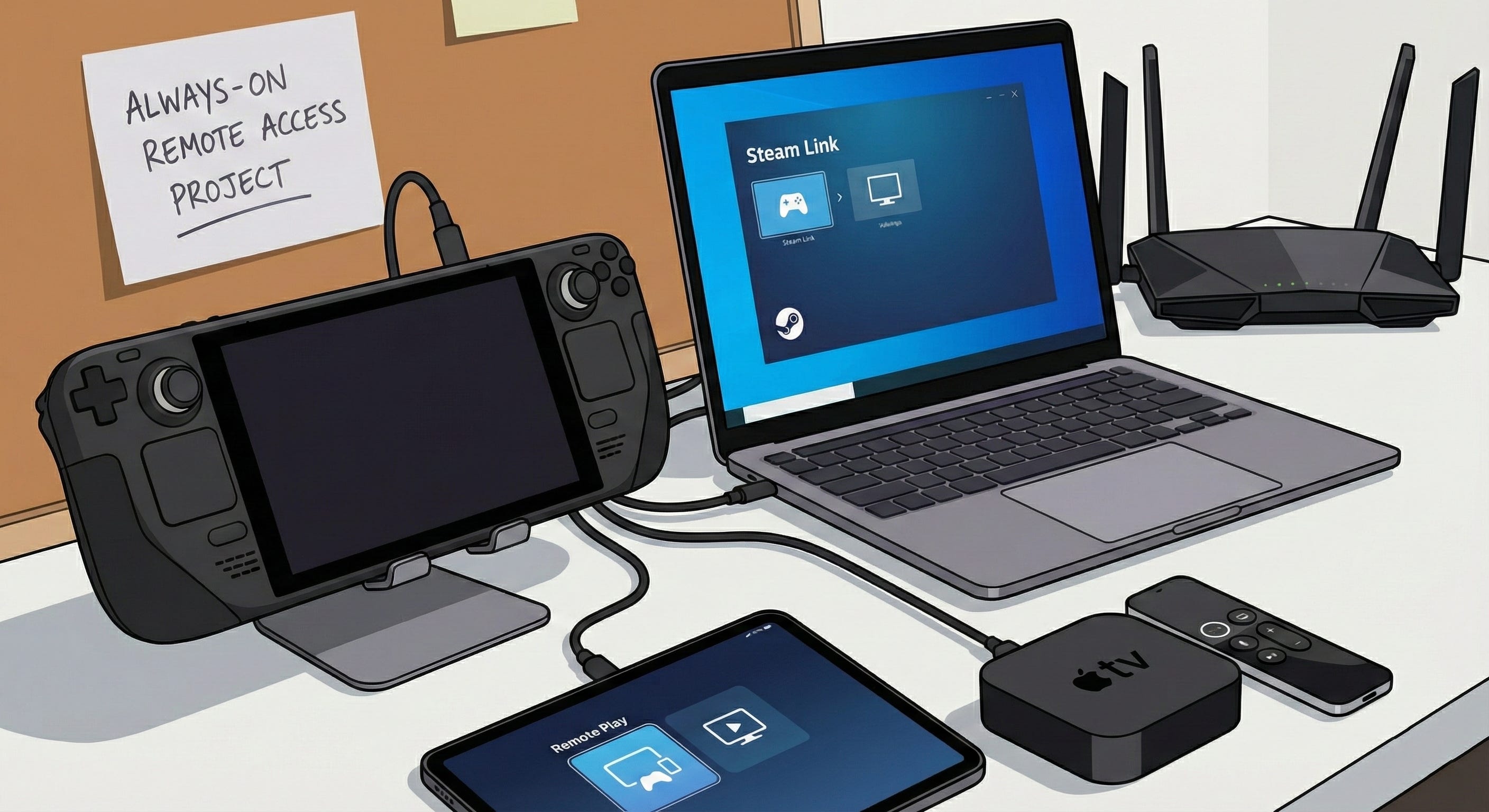
Here’s what I realized: I have an iPad Pro, a MacBook Pro I was lucky enough to buy from work for $500 when they sent me a replacement for it, and an Apple TV in the living room that can do so much more than I’ve given it credit. The Steam Deck sits in a dock on underneath my living room TV. What if I could access it from any of those devices? What if I could stream games to my iPad on the couch, or remote into Desktop Mode from my Mac to install something without walking across the room? Or from my iPad when traveling leaving all of my devices securely at home.
The Steam Deck runs Linux. Tailscale exists. This should be possible.
It is. And after a few evenings of tinkering, I now have a setup where I can access my Steam Deck from anywhere - my couch, my office, or anywhere else in the world - using three different methods depending on what I need to do. Here’s how I did it.
What You’re Actually Getting
Before diving into the setup, let me explain what this gives you. By the end of this guide, you’ll be able to:
Access Desktop Mode remotely via Screens 5 using VNC. This is what I use when I need to install games, manage files, or change settings. It’s not pretty and it’s not fast, but it works.
Play games remotely with full controller support via Steam Link. Steam’s built-in solution is solid and easy to set up. If you just want to play Steam games and don’t care about squeezing out every last millisecond of latency, this is probably all you need.
Stream games with the lowest possible latency via Moonlight and Sunshine. This is the enthusiast option. More setup, better results. I use this when I actually care about performance.
All of this works over Tailscale, which means no port forwarding, no dynamic DNS nonsense, and encryption by default. If you’re not already using Tailscale, you should be. It’s free for personal use and it makes remote access trivially easy.
The Foundation: Tailscale
Everything else depends on Tailscale, so let’s start there. Tailscale creates a secure, encrypted network between your devices. Once your Steam Deck is on your Tailscale network, you can connect to it from any other device on that network, regardless of where you are in the world.
First, switch your Steam Deck to Desktop Mode. Press the Steam button, select Power, and choose Switch to Desktop. You’ll need to do most of this work in Desktop Mode.
The deck user doesn’t have a password by default, and you’ll need one for what comes next. Open Konsole from the Application Launcher and run passwd. Set something memorable. If you don’t have an external keyboard, Steam + X brings up the on-screen keyboard.
Now install Tailscale. In Konsole, run:
git clone https://github.com/tailscale-dev/deck-tailscale.git ~/deck-tailscale
sudo -i
cd ~deck/deck-tailscale
bash tailscale.sh
Wait for it to finish, then:
source /etc/profile.d/tailscale.sh
tailscale up --qr --operator=deck --ssh
This generates a QR code in your terminal. Scan it with your phone, authenticate with your Tailscale account, and authorize the Steam Deck to join your network. Done.
Run tailscale ip and write down the address it gives you. It’ll be something like 100.x.x.x. You’ll use this for everything else.
Before you forget, enable auto-updates:
sudo tailscale update
sudo tailscale set --auto-update
exit
Install Tailscale on every device you want to connect from. Mac, iPhone, iPad, whatever. Sign in with the same account.
VNC for Desktop Mode Access
Screens 5 is my favorite remote desktop app in the Apple ecosystem, and I’ve been using it with Tailscale to access my Mac for years. Getting it working with the Steam Deck requires installing a VNC server, since SteamOS doesn’t include one.
There’s a script that handles most of the work. In Konsole:
sh -c "$(curl -fsSL https://gist.githubusercontent.com/x43x61x69/9a5a231a25426e8a2cc0f7c24cfdaed9/raw/vnc_install.sh?$RANDOM)"
This temporarily disables SteamOS’s read-only protection, installs x11vnc, creates some helpful shortcuts on your Desktop, and re-enables protection. When it finishes, you’ll have a VNC folder on your Desktop.
Open that folder and double-click Reset VNC Password. Set a password you’ll remember - you’ll need it for Screens 5.
To make VNC start automatically when you boot into Desktop Mode, open System Settings, navigate to Startup and Shutdown, then Autostart. Click Add, select Add Login Script, navigate to Desktop/VNC, and select vnc_startup.sh.
In Screens 5 on your iPad or Mac, create a new connection. Use your Tailscale IP as the host, port 5900, and the VNC password you just set. Save it and test.
I should be honest here: VNC is not fast. It’s not meant for gaming or anything that requires smooth video. But for installing games, managing files, or changing settings? It works fine. I keep Screens 5 around for the times when I need to do something in Desktop Mode and I’m nowhere near the physical device.
Steam Link for Gaming
If you just want to play games remotely, Steam Link is the path of least resistance. It’s built into Steam, it handles controller input well, and it’s available on basically every platform.
On your Steam Deck, open Steam in Desktop Mode and go to Settings, then Remote Play. Enable Remote Play. That’s it on the Deck side.
On your remote device, install Steam Link. It’s available on Mac, iPhone, iPad, and Apple TV - I have it on all of them now. Open it, go to Settings, then Computer, then Other Computer. Enter your Tailscale IP and connect. Steam Link will show you a 4-digit PIN. On your Steam Deck, a popup will ask you to authorize the connection. Enter the PIN and click OK.
Pair your controller to your remote device, not the Steam Deck. This is the part that trips people up. The controller connects to your iPad or phone or whatever, and Steam Link passes that input through the stream to the Deck.
Steam Link works well enough that I used it exclusively for a few weeks before bothering with Moonlight. If you’re on a decent connection, you might not need anything else.
Moonlight and Sunshine for the Best Experience
However, if you want the lowest latency and highest quality streaming, Moonlight with Sunshine is the way to go. Sunshine runs on your Steam Deck as the host. Moonlight runs on your remote device as the client.
Install Sunshine via Flatpak:
flatpak install flathub dev.lizardbyte.app.Sunshine
Run it once to do initial setup:
flatpak run dev.lizardbyte.app.Sunshine
Open Firefox or Chrome on your Steam Deck and go to https://localhost:47990. You’ll get a security warning about the self-signed certificate - click through it. Create an admin username and password when prompted.
Add Sunshine to autostart the same way you added VNC: System Settings, Startup and Shutdown, Autostart, Add Application, search for Sunshine.
On your remote device, install Moonlight. It’s available for Mac, iPhone, iPad, and Apple TV - so I can stream to any screen in my house. Add your Steam Deck manually using the Tailscale IP. When you select it, Moonlight will display a 4-digit PIN. Go back to the Sunshine web UI on your Steam Deck, find the PIN section, enter the code, and click Send.
That’s it. Select your Steam Deck in Moonlight, choose Desktop or a specific app, and you’re streaming.
The difference between Moonlight and Steam Link is noticeable if you’re paying attention. Moonlight feels more responsive, especially in games where input timing matters. Whether that matters to you depends on what you play. Of course, right now, Moonlight is streaming for me at very low quality. Moonlight might be better suited for a gaming PC, which again, I don’t have access to or the money to buy right now. But I still wanted to have it setup to learn the process and as another option in case I ever get a fancy gaming PC or figure out how to resolve through troubleshooting Moonlight.
Keeping It Always-On
For remote access to work, your Steam Deck needs to stay awake when it’s plugged in. Click the battery icon in the system tray and configure Energy Saving settings. Under the On AC Power tab, set Suspend session to Never and set When laptop lid closed to Do nothing. The screen can dim or turn off - that’s fine.
If you want the Deck to always boot into Desktop Mode instead of Gaming Mode, open System Settings, go to Login Screen (SDDM), click the Behavior tab, and enable automatic login for the deck user with the Plasma (X11) session. I recommend this for VNC compatibility, but it means you’ll need to manually switch to Gaming Mode when you want it.
The Maintenance Problem
Here’s the caveat I wish someone had told me upfront: SteamOS updates will probably break VNC. The read-only filesystem protection that makes SteamOS stable also means that anything you install outside of Flatpak gets wiped when the system updates.
After a SteamOS update, you’ll likely need to reinstall VNC. There’s a Reinstall VNC shortcut in the VNC folder on your Desktop, or you can run the installation script again. It takes about a minute.
Tailscale and Sunshine are both installed in ways that survive updates, so those should keep working. But check after any major SteamOS update, just in case.
Which Tool for What
After using this setup for a while, here’s how I actually use each tool:
For installing games, managing files, or changing settings, I use Screens 5 on my iPad Pro or Mac. It’s slow but it gives me full desktop access.
For playing Steam games casually, I use Steam Link. On the Apple TV it’s great for couch gaming. On the iPad it works well when I’m in bed and don’t feel like getting up.
For quick troubleshooting or running commands, I use SSH. If you haven’t enabled it, run sudo systemctl enable sshd.service and sudo systemctl start sshd.service. Then you can connect from any device on your Tailscale network with ssh deck@100.x.x.x.
What I’d Still Like to Figure Out
This setup isn’t perfect. VNC is fundamentally limited - it wasn’t designed for streaming video, and it shows. I wish there were a better option for Desktop Mode access that didn’t require running Sunshine all the time.
The maintenance situation with SteamOS updates is annoying. I get why Valve designed it this way, but reinstalling VNC every few weeks isn’t great.
And honestly, I’m still not sure if the Moonlight/Sunshine complexity is worth it over Steam Link for my use case. I mostly play indie games, RPGs, and retro games, where milliseconds don’t matter. Your mileage may vary.
But overall? I’m happy with it. This is exactly the kind of optimization I was looking for - getting more out of hardware I already own without spending anything. My Steam Deck now feels like part of my actual workflow instead of a separate device I have to physically walk over to. I can install a game from my iPad while I’m on the couch, then stream it to my Apple TV an hour later. That flexibility didn’t cost me a dime, just a few evenings of setup.