The Essential iPadOS 26 Keyboard Shortcuts You Need to Know
I’ve been using iPadOS 26 since the first public beta it dropped this past summer 2025 and honestly, the keyboard shortcuts alone have changed how I work. If you’re using an external keyboard with your iPad - Magic Keyboard, Logitech, whatever - you need to know these.
But before I get into the shortcuts themselves, I need to talk about the biggest change. It’s not a new shortcut. It’s how you find them.
The Menu Bar Changes Everything
Remember holding Command to see all available shortcuts in an app? That overlay that would pop up showing you what was possible? It’s gone. Apple killed it.
In its place: a proper menu bar. Swipe down from the middle-top of your screen, or hit Globe + M, and there it is. File, Edit, Window - the whole Mac-style setup. Every shortcut lives here now, organized into actual menus you can browse.
I resisted this at first. The old overlay was quick. One key press and you could scan everything. Now you have to navigate menus like it’s 1995. However, after a few weeks with it, I get why Apple made the change. The menu bar isn’t just for shortcuts - it’s for commands. Settings. Window arrangements. Things that never fit into that floating overlay. It’s more powerful, even if it takes an extra second to invoke.
If you’re on a third-party keyboard without a Globe key, go to Settings > General > Keyboard > Hardware Keyboard > Modifier Keys. You can remap Caps Lock or another key to act as Globe. Do this. You’ll need it.
Window Management (The Good Stuff)
iPadOS 26 finally has real windowing, which means real window shortcuts. These are the ones I use constantly.
Command + W closes the current window. Finally. No more hunting for the X button or using the traffic light controls.
Command + M minimizes it. The window slides to the Dock and gets out of your way.
Globe + F toggles full screen. Press it again to return to windowed mode. I use this probably thirty times a day when I need to focus on one thing and then get back to my messy workspace.
Command + Tab switches apps, same as always. But now it actually matters because you might have twelve windows open at once.
Tiling Shortcuts (The Real Power)
Here’s where iPadOS 26 actually feels like a desktop operating system. Apple added tiling shortcuts, and they’re dense but worth memorizing.
Control + Globe + Arrow tiles the current window to half the screen. Press Control + Globe + Left Arrow, your window snaps to the left half. Control + Globe + Right, it goes right. Control + Globe + Up maximizes it. Control + Globe + Down... well, that one’s less useful in my experience.
Control + Shift + Globe + Arrow is the fancy one. It takes your current window AND your most recently used window and arranges them together. So if I’m in Safari and was just in Notes, Control + Shift + Globe + Left puts Safari on the left and Notes on the right automatically. Two keystrokes and I’ve got a split-screen workspace.
The tiling shortcuts work with the traffic light controls too, if you prefer mouse or touch. Long-press those buttons and you get the same arrangement options. I stick with keyboard because it’s faster, but the option is there.
System Shortcuts Worth Knowing
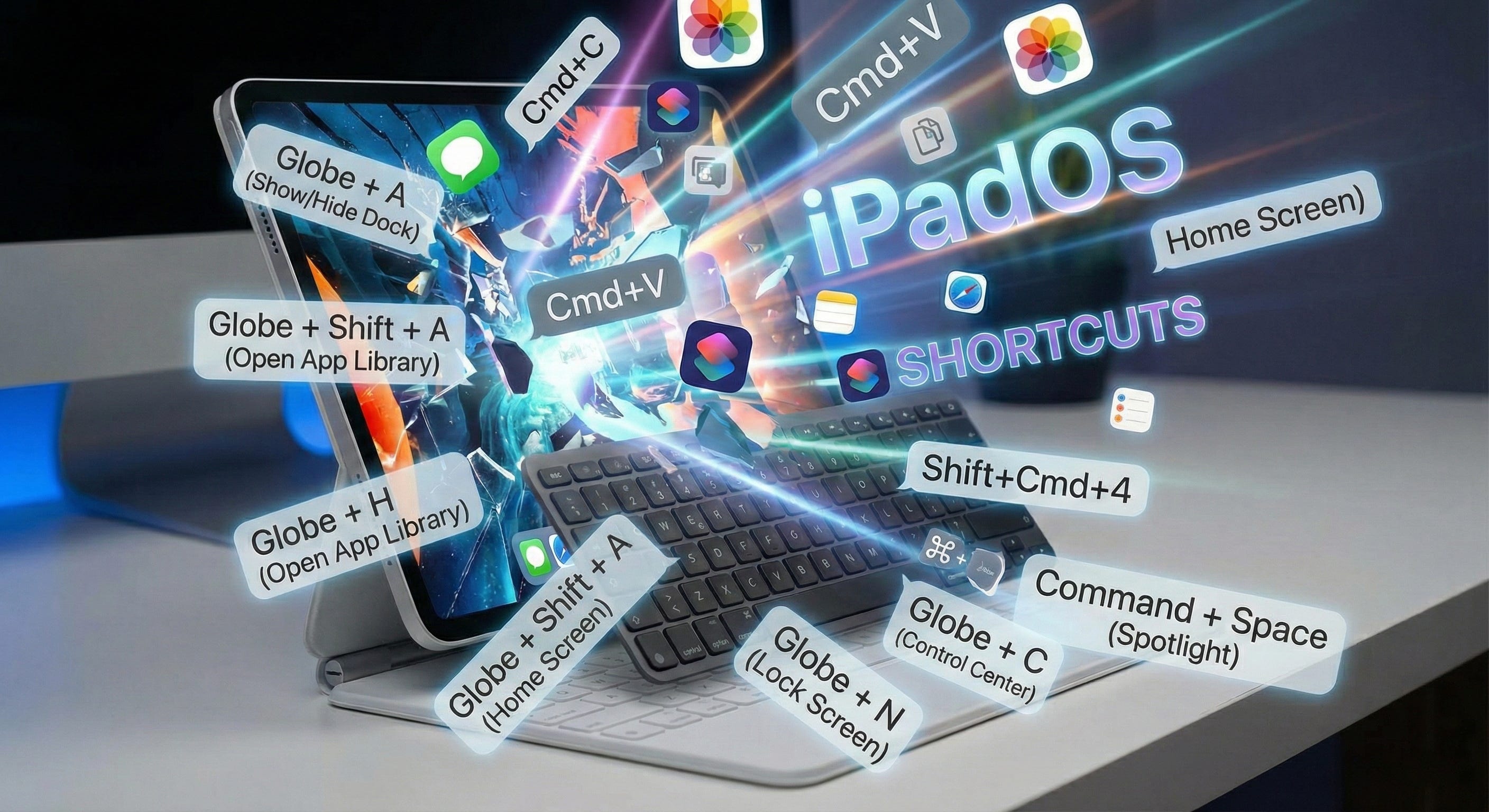
Globe + A shows or hides the Dock. Useful when you’re in full-screen mode and need quick access to another app.
Globe + Shift + A opens the App Library. I forget this one exists and then remember it and wonder why I ever swiped around looking for apps.
Globe + H goes to the Home Screen. Basically the keyboard version of swiping up.
Globe + N shows the Lock Screen. I have no idea why you’d want this, but it exists.
Globe + C opens Control Center. Faster than swiping from the corner.
Command + Space is Spotlight, same as it’s been for years. Still the fastest way to open anything.
Editing Shortcuts (The Basics)
These haven’t changed, but they’re worth listing because I still see people selecting text with their fingers like animals.
Command + A selects all.
Command + C copies. Command + X cuts. Command + V pastes.
Command + Z undoes. Shift + Command + Z redoes.
Command + B bolds selected text. Command + I italicizes. Command + U underlines.
Globe + E opens the emoji picker, or just press the Globe key by itself. Same result.
Screenshots
Command + Shift + 3 takes a screenshot.
Command + Shift + 4 takes a screenshot AND immediately opens Markup so you can annotate it. This is the one I use. Saves a step.
What’s Still Missing
I should be honest: iPadOS 26’s keyboard support is dramatically better than before, but it’s not macOS. There are no Shortcuts automations for window management yet. You can’t write an automation that says “put Safari on the left and Claude on the right” - you have to do it manually every time. Federico Viticci has been complaining about this for months and he’s right.
The menu bar also can’t be pinned to always show. You invoke it, use it, and it disappears. If you’re used to the Mac where the menu bar is just there, this takes adjustment.
And if you’re using a non-Apple keyboard, some of these shortcuts just don’t work. The Globe key combinations especially. Users on Reddit have been reporting that Control + Globe + Arrow does nothing on certain Logitech keyboards. Apple needs to fix this or document it better, because right now it’s trial and error.
The Shortcut to Remember
If you only memorize one thing from this article, make it Globe + M for the menu bar. Everything else flows from there. Every app’s shortcuts are listed in those menus. Every window command. Every editing option.
The old Command-hold overlay was convenient. But the menu bar is where iPadOS 26 finally admits that yes, some of us use our iPads like computers, and we deserve the same discoverability Mac users have had for forty years.
BONUS: Video Walkthrough
I should also mention, Christopher Lawly released an iPadOS 26 walkthrough Youtube video that does an amazing job walking through some of iPadOS 26’s new keyboard shortcuts: